
Sahakar Nagar
MacBook Repair Center in Sahakar Nagar, Bangalore
Before delving into the troubleshooting process, you'll need a few essential tools:-
- Screwdriver Set: You need a precision screwdriver set in order to get to and handle your MacBook’s internal components.
- Spudger or Plastic Pry Tool: These tools assist you in breaking off components with minimum damage.
- Compressed Air: Your MacBook may be slowed down by dust and debris that accumulate inside it. These areas require compressed air for cleaning.
- Thermal Paste: In case your MacBook is overheating, you should consider reapplying thermal paste to the CPU and GPU.
- Anti-Static Wrist Strap: Wear an anti-static wrist strap to protect your MacBook from electrostatic discharge when performing repair.
Nearby localities
MacBook Hardware Repair - When Should You Hire A Professional ?
Some technical problems could only be fixed with professional help. Here are some scenarios where you should consider expert help:
- Liquid Damage: The problem may be internal damage, requiring instant professional attention to avoid serious consequences.
- Logic Board Problems: Macbooks facing random shutdowns or not turning ON may have a faulty logic board that requires specialization to fix.
- Screen and Battery Replacement: Their replacement would need expertise as well as specialized tools.
- Unusual Noises: A failed hard drive or fan may show up as grinding, clicking, or other abnormal noises. Professionals should assess and address these issues.
Common Issues and Fixes for MacBook Software Issues
There are many ways in which software problems on your MacBook can hinder your productivity. However, most common software errors are manageable.
Slow Performance
You can do a number of things if you notice that your MacBook is not working smoothly. First, head to “System Preferences” > “Users & Groups” and remove unnecessary startup items to make your Mac boot faster. Also, make sure that you have adequate free disk space by removing unnecessary files, and transferring unused data to an external hard drive.
Application Crashes
Application crashes might get quite annoying during very important activities. In order to fix this problem, it is important to keep all software up-to-date; this includes the macOS and their associated applications, many of which patch bugs and improve stability in updates. In case a particular program keeps failing, think of removing it and then reinstalling it from the Mac App Store or the developer’s website.
Startup Errors
Start-up failures can be distressing. The “Utilities” folder in the “Applications” directory houses a tool dubbed Disk utility which can come in handy in some instances. It can be used to check and repair disk permissions and fix file system problems. Nonetheless, if the problems at start-up are not solved by software solutions then underlying hardware issues may be causing the problem. It then becomes necessary to ask for professional assistance for a thorough diagnosis.
Display Problems
This can be unnerving if you see display issues such as flickering, artefacts, or a blank screen. To address this, first, reset NVRAM by rebooting your MacBook while holding down Command, Option, P, and R until two startup chimes sound. If the problem continues, try connecting your MacBook to an external display to verify whether the problem is only in the internal display or has deeper roots. Consult a professional if this is the case.
Unresponsive or Frozen Apps
It is quite frustrating when your application freezes while working on an important task. If yes, ensure your macOS and applications are always up-to-date. Try removing the application that is posing the problem by using the option “remove” and then reinstall it from either the Mac App Store or the developer’s Web browsers, for instance, typically have stability problems as their caches accumulate over time, but these can often be fixed by clearing the caches from the application’s preferences.
Common Issues and Fixes for MacBook Software Issues
There are many ways in which software problems on your MacBook can hinder your productivity. However, most common software errors are manageable.
Slow Performance
You can do a number of things if you notice that your MacBook is not working smoothly. First, head to “System Preferences” > “Users & Groups” and remove unnecessary startup items to make your Mac boot faster. Also, make sure that you have adequate free disk space by removing unnecessary files, and transferring unused data to an external hard drive.
Application Crashes
Application crashes might get quite annoying during very important activities. In order to fix this problem, it is important to keep all software up-to-date; this includes the macOS and their associated applications, many of which patch bugs and improve stability in updates. In case a particular program keeps failing, think of removing it and then reinstalling it from the Mac App Store or the developer’s website.
Startup Errors
Start-up failures can be distressing. The “Utilities” folder in the “Applications” directory houses a tool dubbed Disk utility which can come in handy in some instances. It can be used to check and repair disk permissions and fix file system problems. Nonetheless, if the problems at start-up are not solved by software solutions then underlying hardware issues may be causing the problem. It then becomes necessary to ask for professional assistance for a thorough diagnosis.
Display Problems
This can be unnerving if you see display issues such as flickering, artefacts, or a blank screen. To address this, first, reset NVRAM by rebooting your MacBook while holding down Command, Option, P, and R until two startup chimes sound. If the problem continues, try connecting your MacBook to an external display to verify whether the problem is only in the internal display or has deeper roots. Consult a professional if this is the case.
Unresponsive or Frozen Apps
It is quite frustrating when your application freezes while working on an important task. If yes, ensure your macOS and applications are always up-to-date. Try removing the application that is posing the problem by using the option “remove” and then reinstall it from either the Mac App Store or the developer’s Web browsers, for instance, typically have stability problems as their caches accumulate over time, but these can often be fixed by clearing the caches from the application’s preferences.
MacBook Repair Service - Choosing The Right Provider
It is paramount to choose the right MacBook service and repair centre. Here's how to make an informed choice:
- Experience: Go for service providers that have had success in repairing MacBooks before.
- Reviews and Testimonials: Evaluate the provider’s reputation by reading online reviews and references.
- Warranty and Guarantees: Ensure that their repair centre provides a warranty with their work as well when using genuine Apple parts.
- Convenience: Pick the service centre which is easily accessible for drop and pick up.
Cost of MacBook Repair: DIY vs. Professional Services
DIY repairs can save money in case of repairs to your MacBook but at the cost of the expertise of professional services. Cost is low when compared to professional repairs as these can lead to additional damages and result in warranty voids. Although professional services appear expensive, they are often accurate in diagnosing and employing genuine parts; in addition, most of them have warranty periods hence resulting in peace of mind later on. It depends on your technical confidence in dealing with such a problem, the difficulty of the issue, and the warranty of your Macbook. While one might cut costs by doing repairs alone, professional services offer specialized skills and safeguards.
Conclusion: Taking Care of Your MacBook
Your MacBook should be cared for, as it is a valuable asset. Understanding typical problems, adopting preventive measures, and recognizing when to seek professional help will guarantee you always have a long lifespan from your device.
iProducts Blogs

25
Sep
Sep

25
Sep
Sep
How to fix a MacBook that won't turn on?
Learn More →
25
Sep
Sep
Get your iPhone Screen Repair in Bangalore
Learn More →
21
Oct
Oct
How To Install The Macos Big Sur On Your Mac?
Learn More →
21
Oct
Oct
How To Install The watchOS 7 Public Beta On Apple Watch?
Learn More →
23
Sep
Sep
Know the Difference – iPhone 13 v/s iPhone 13 Pro
Learn More →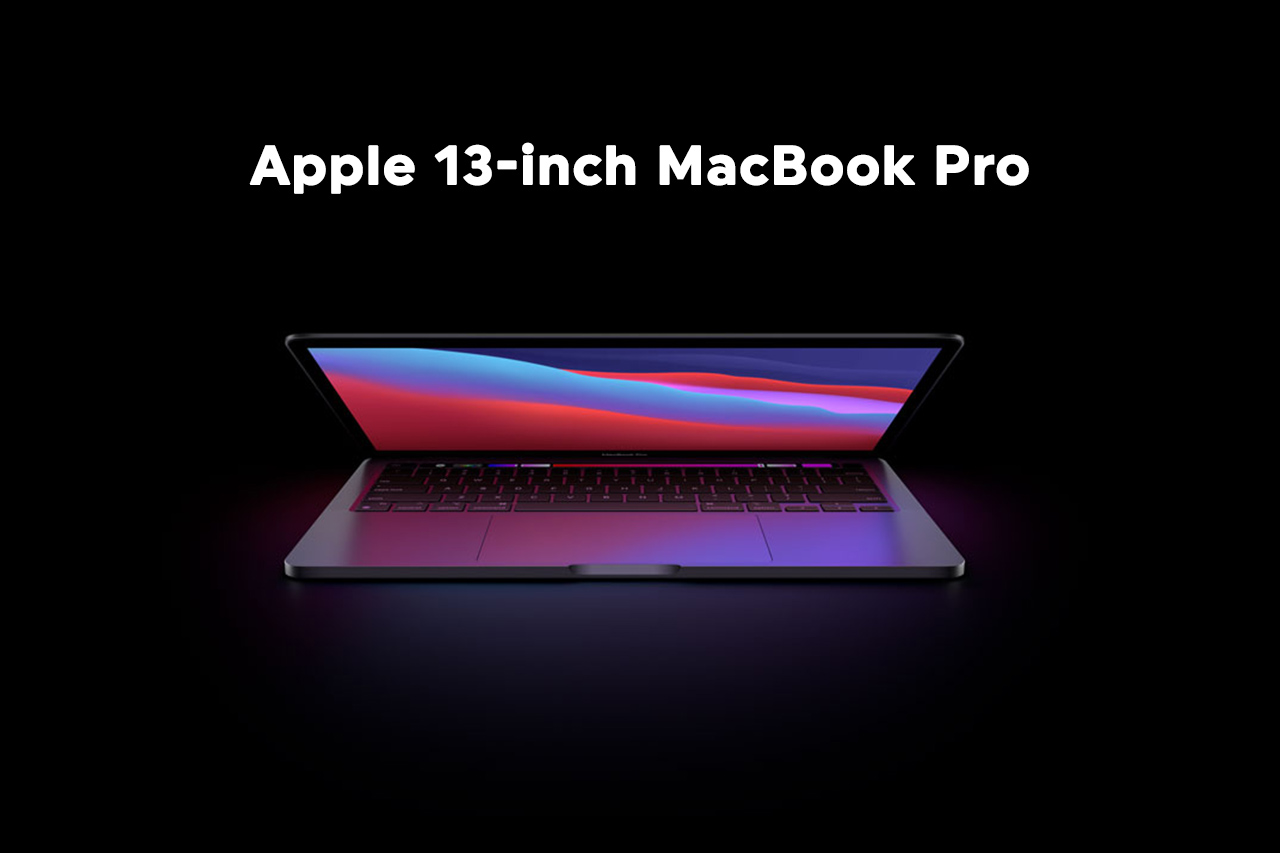
23
Sep
Sep
Apple 13-inch MacBook Pro at a Glance
Learn More →
23
Sep
Sep
Is Apple Smart Watch Series 7 Worth Purchase?
Learn More →
25
Jul
Jul
Reliable Repairs and High-Quality Refurbished MacBooks at MacBook Repair Bangalore
Learn More →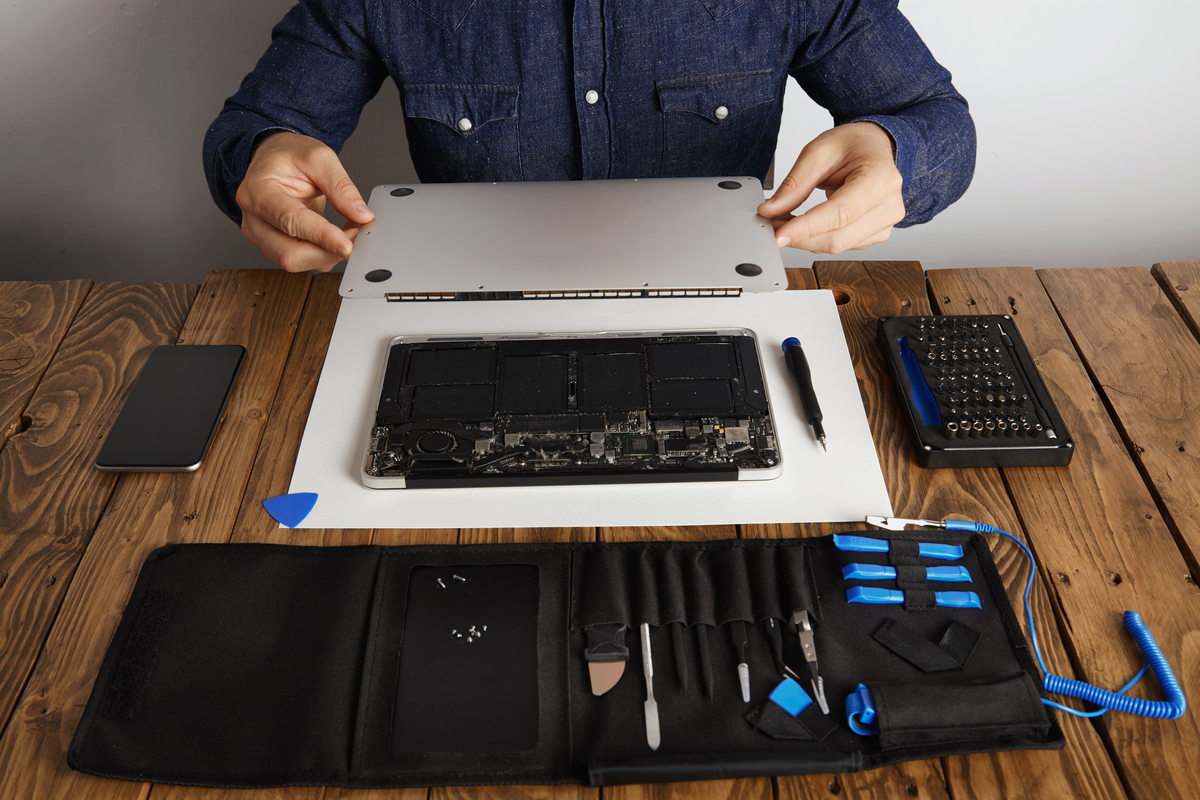
28
Jul
Jul
Fast & Reliable MacBook Repair in Bangalore—Trusted by Thousands
Learn More →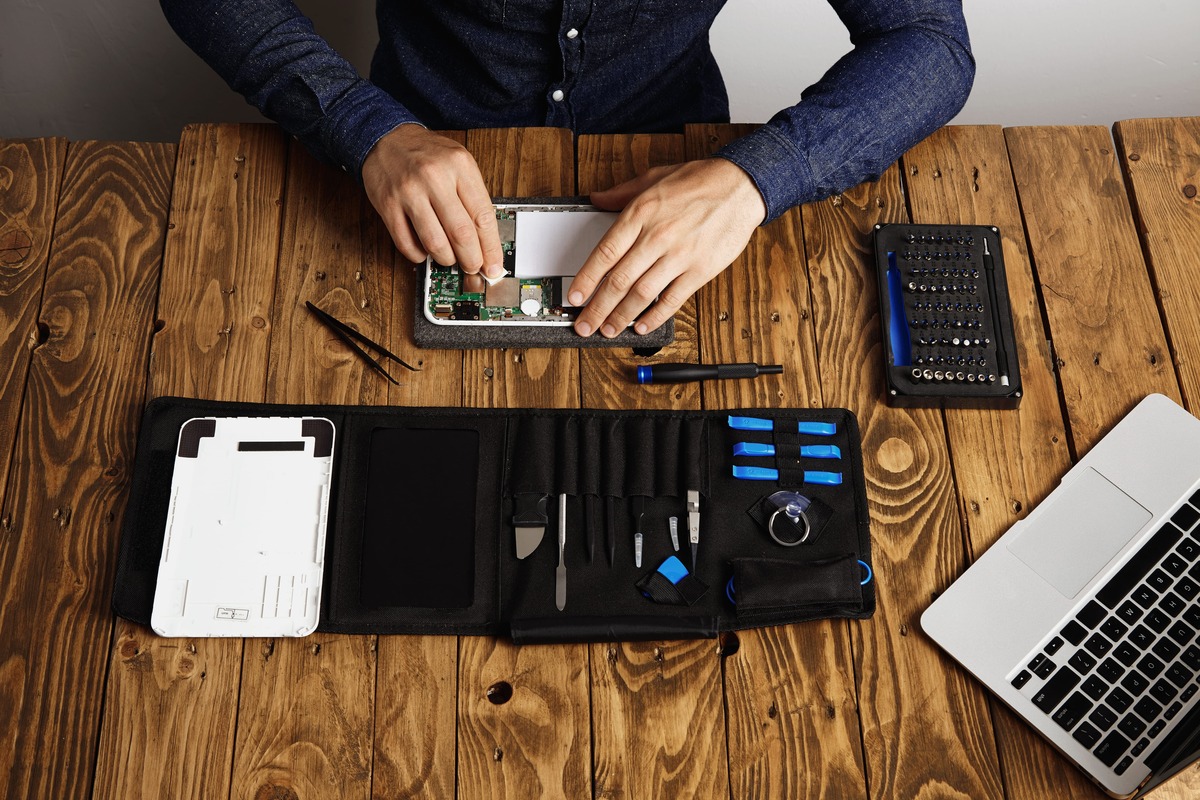
12
Aug
Aug
iPhone & MacBook Repair in Bangalore - Quick, Reliable & Low-Cost
Learn More →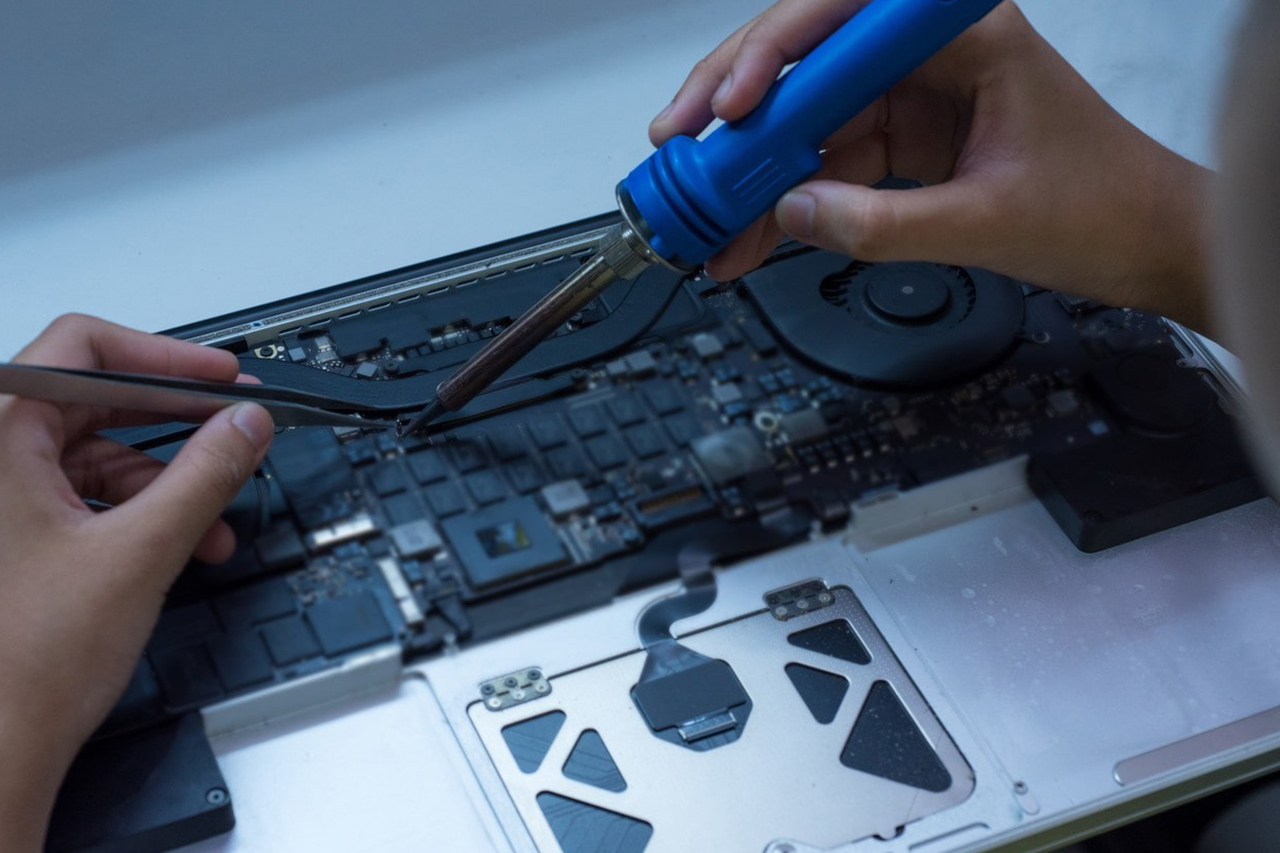
21
Aug
Aug
MacBook Repair in Bangalore – A Trusted Repair Service at iproductrepair.com
Learn More →
06
Sep
Sep
The Buzz on the New IPhone 17 Pro Max
Learn More →
11
Sep
Sep
Macbook laptop keyboard not working
Learn More →
11
Oct
Oct
iPhone Repair Bangalore: Hype or Healthier Choice?
Learn More →
21
Oct
Oct